

Hermes Agent is an open-source AI agent from Nous Research. It remembers what you tell it, saves reusable skills and runs jobs on a schedule. On a laptop, all of that stops when the lid closes. On a small Linux VPS, it keeps working while you're offline.
By the end of this guide you'll have
- Hermes running on your own server, 24/7
- A model provider connected
- A quick test that proves its memory works
Who this guide is for
Developers and founders who tried Hermes locally and want it always on: answering from Telegram, sending a morning digest or finishing a task overnight. You need an SSH key and an account with a model provider. The guide takes five steps: pick a server size, prepare the server, install Hermes, connect a model provider and test its memory.
Pick a server size
Hermes is light. Your model provider does the heavy thinking over an API, so the server only runs the agent, its memory and the messaging gateway. Start small and resize when you add browser tools or more scheduled jobs.
Sizing guide
Disk can be increased but not reduced. RAM and CPU scale both ways.
Running a local model with Ollama? Its sizing is in the box at the end of Step 4.
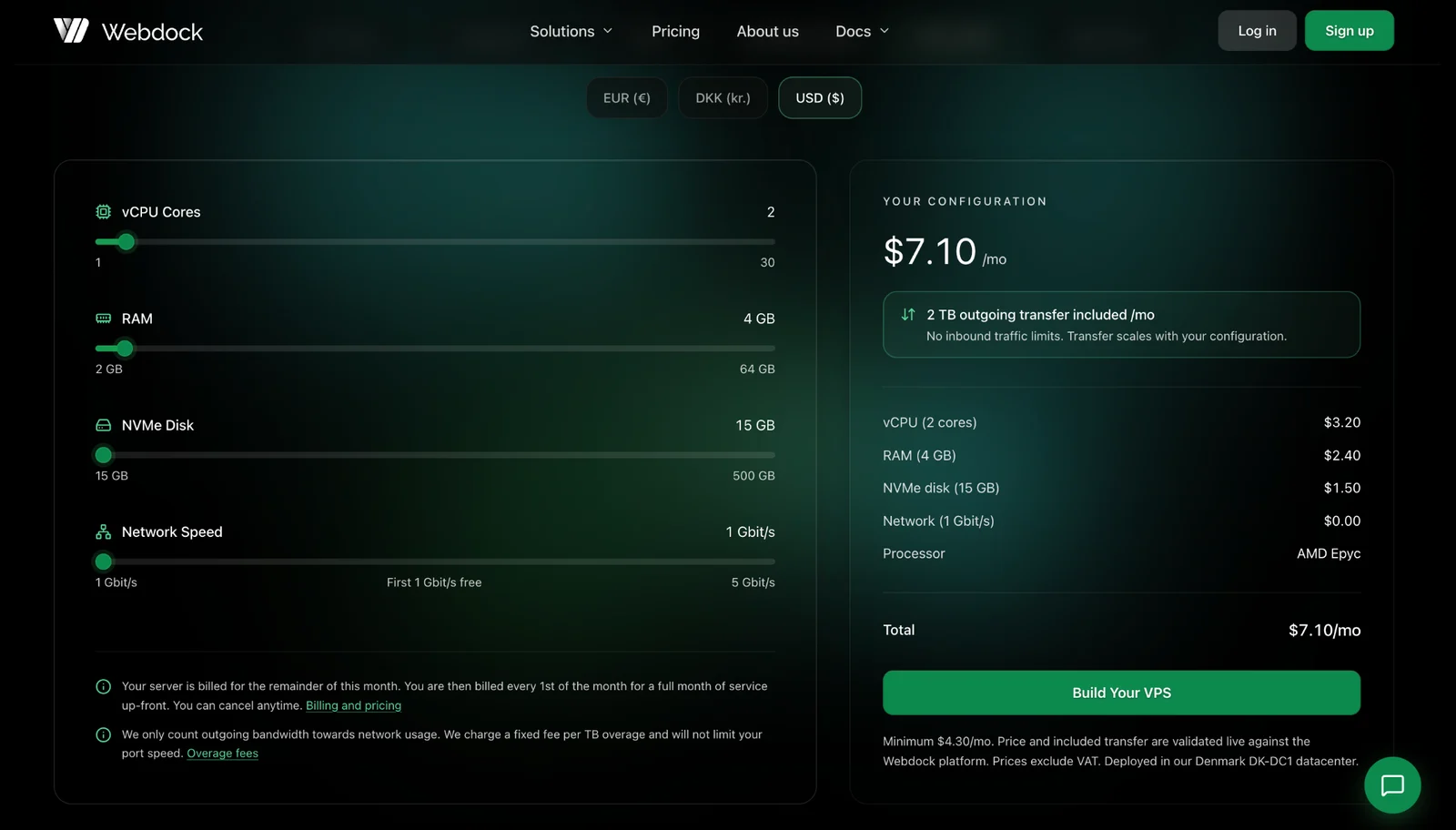
Build the profile in the custom VPS builder and choose the Ubuntu Webserver image with NGINX. It comes with Certbot and Git, which Part 2 uses to put the dashboard on your own domain with HTTPS.
Prepare the server
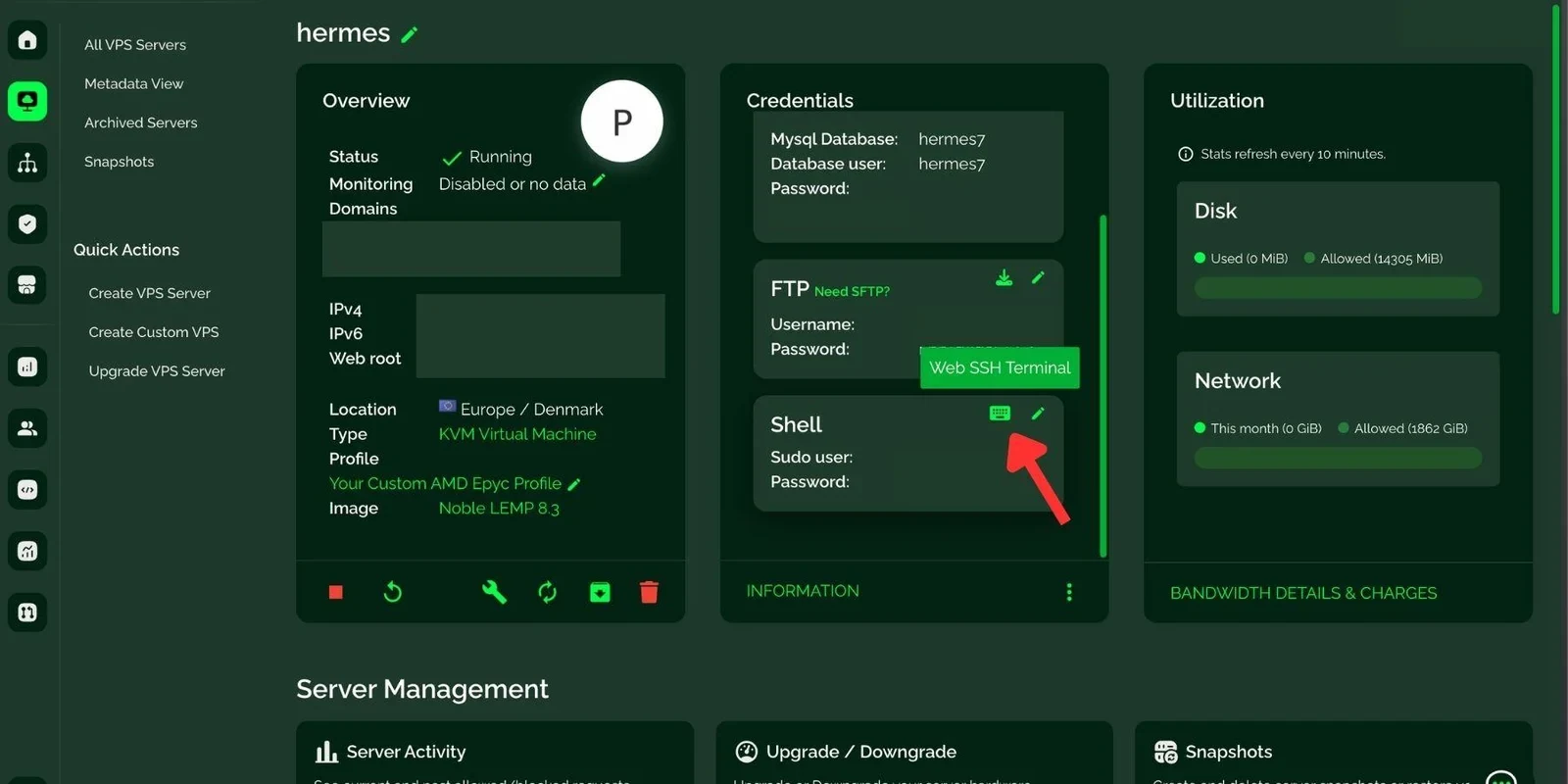
Two minutes of housekeeping: get in over SSH, update the system and set the clock so every scheduled job runs on time. Standard Webdock stacks come with a sudo user named admin, and direct root login with a password is off by default. Add your public SSH key to that user under Shell Users in the server dashboard, then connect with your own SSH client or the browser-based Web SSH terminal.
sudo apt update && sudo apt upgrade -y
sudo timedatectl set-timezone Europe/CopenhagenBefore you continue
Take a manual snapshot now, so you have a clean restore point if a later step goes wrong. Every Webdock server includes 2 daily and 3 weekly automatic snapshots plus 3 manual slots. How snapshots work.
Install Hermes
One command installs Hermes and the runtimes it needs into your home folder, then opens a short setup wizard. Run it as your sudo user, not as root.
curl -fsSL https://hermes-agent.nousresearch.com/install.sh | bash
source ~/.bashrc
In the wizard:
- Choose Full Setup.
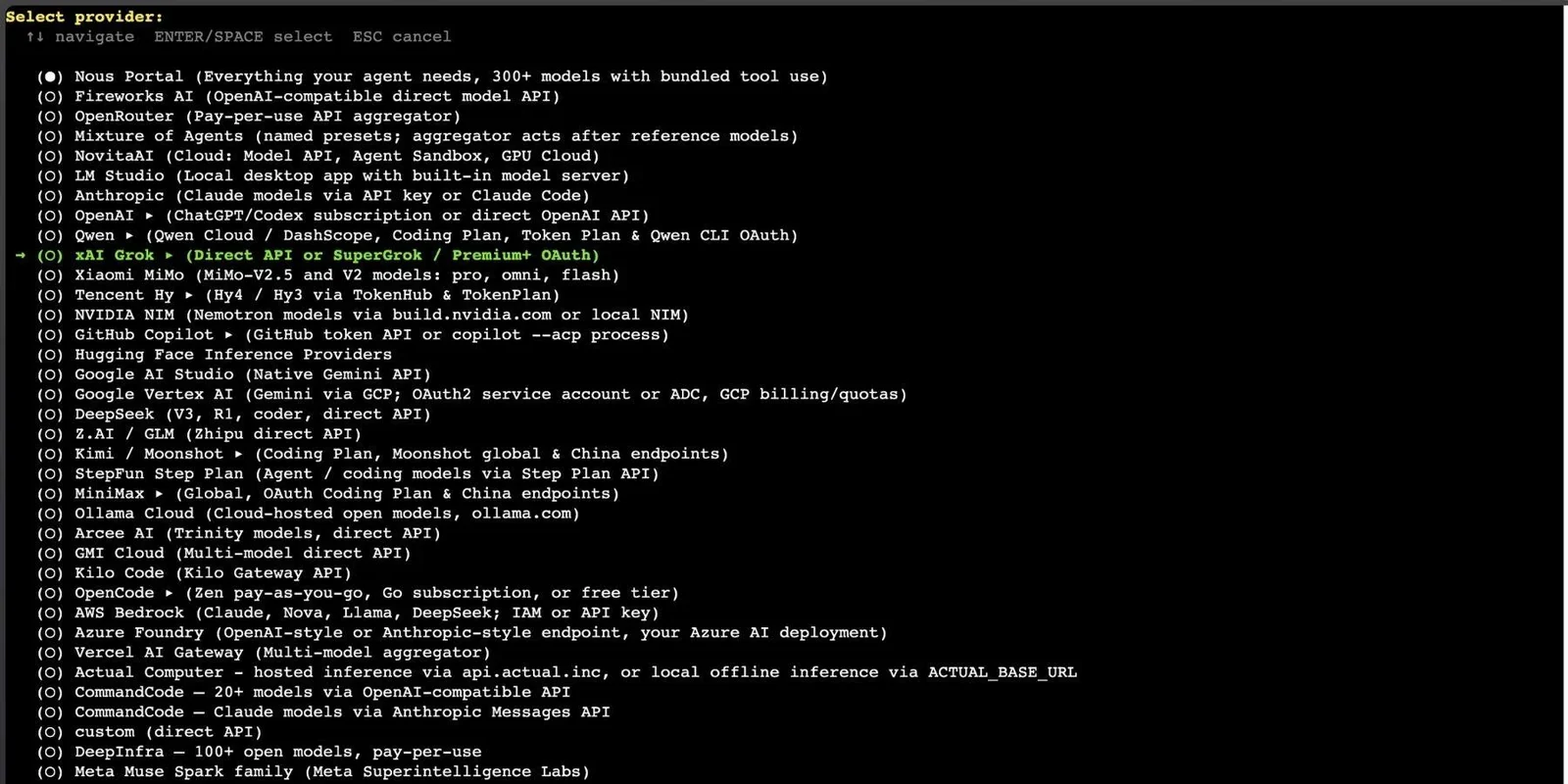
- Pick a model provider (more on that in Step 4).
- Set the terminal backend to local, so commands run on this VPS.
- Press Esc to skip the messaging step for now.
Everything else can be changed later.
Connect a model provider
The model provider is the agent's brain. Pick one in the wizard. Add more later with hermes model and switch inside a chat with /model. Memory and skills stay in place when you switch.
Common provider choices
Running a local model instead?
- Optional: skip this box if you use a hosted provider such as Nous Portal, OpenRouter, Anthropic or OpenAI.
- Model: pick one with tool calling and at least 64,000 tokens of context.
- Server size: the Hermes docs list gemma4:31b at 24 GB RAM or more and about 20 GB of disk. Webdock servers are CPU-based, so expect slower replies than on a GPU.
- Context window: Ollama's default is far below the 64,000 tokens Hermes needs (4k below 24 GiB of VRAM, see the Ollama docs). Create a variant with a larger window first, as below.
cat > /tmp/Modelfile << 'EOF'
FROM your-model-name
PARAMETER num_ctx 64000
EOF
ollama create your-model-64k -f /tmp/ModelfileTest memory and check status
Now prove it works. Start a chat and tell Hermes one fact about your project. Quit with /quit, resume the session and ask for the fact back. If it answers, the model connection and memory both work.
Reach Hermes from anywhere
The dashboard listens on localhost only, so you don't need to open any extra ports yet. There are three ways in:
- Terminal UI: run hermes --tui for a fuller interface in the same SSH session.
- Browser dashboard: run hermes dashboard --no-open on the server, then open it on port 9119 through an SSH tunnel.
- Phone: the Webdock mobile app for iOS and Android includes SSH access. Open a session and type hermes.
ssh -L 9119:localhost:9119 yourname@your-server-ip
# then open http://127.0.0.1:9119 in your browserHow Webdock fits
Resize as You Grow
Start small and add RAM or CPU when you add jobs. Your IP address and data stay on the same server.
Danish and Renewable
Webdock is Danish-owned and runs its own datacenter in Denmark on 100% renewable electricity, under Danish and EU law.
Next, Part 2 puts the dashboard on your own domain with HTTPS, connects Telegram and sets up a scheduled job. Part 3 adds reminders and a monthly report that run on their own. More on agents on Webdock: run AI agents on a VPS.
Frequently asked questions
Not when it calls a hosted model over an API, which is the setup in this guide. A GPU matters only for large local models. Webdock servers are CPU-based and suit API-backed agents and smaller local models.
No. You install Hermes yourself on any Webdock Linux VPS with the official installer, as shown above. You stay on the standard Hermes release and in control of updates.
Your prompts go to the model provider you configure. Conversations, memory and skills are stored in ~/.hermes on your server. Review that provider's data policy before you share sensitive data.
Yes. Run hermes model or use /model inside a chat. Memory and skills stay on your server.