Introduction
This article explains how to configure email forwarding for a domain using the ImprovMX add-on, including domain linking, DNS (MX record) configuration, and setting up forwarding destinations to external email inboxes such as Gmail or Outlook.
Setting up Email Forwarding
Note: This add-on is available on selected standard profiles and on custom profiles that meet the minimum pricing tier. Refer to the Custom VPS pricing page for current eligibility requirements.
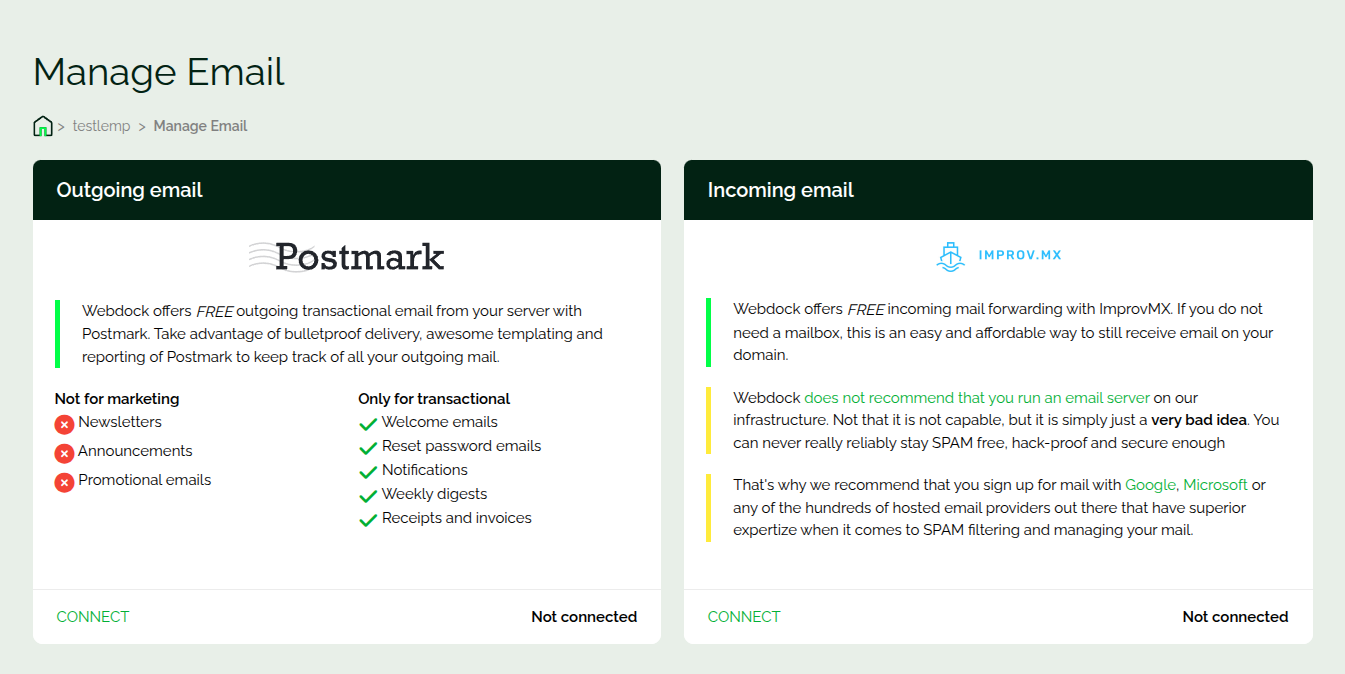
Link your domain to the ImprovMX add-on from the ‘Manage Email’ section on the server dashboard. Under ‘Incoming email’, press ‘Connect’ to begin setup.
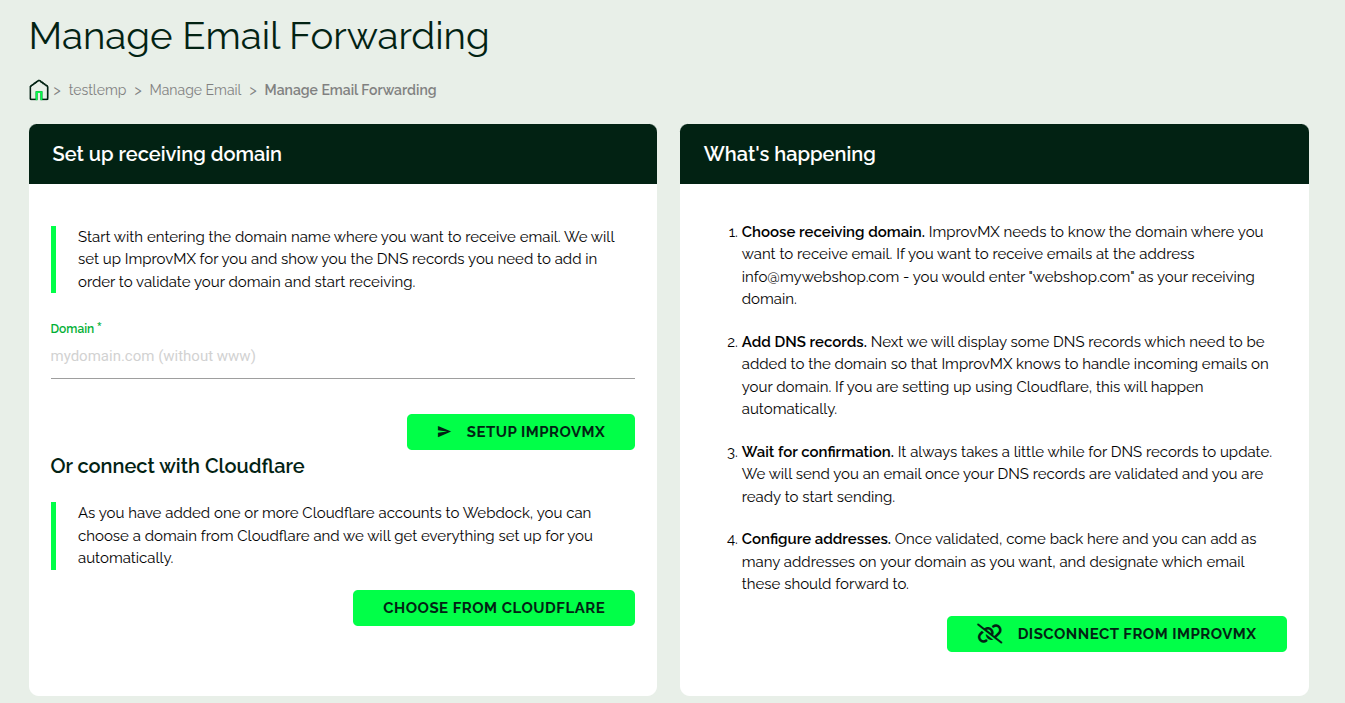
Enter your domain to retrieve the required MX records for DNS configuration. Add these MX records to your domain’s DNS zone at your DNS provider. If Cloudflare is connected to your Webdock account, you can select the domain using the ‘Choose From Cloudflare’ option.
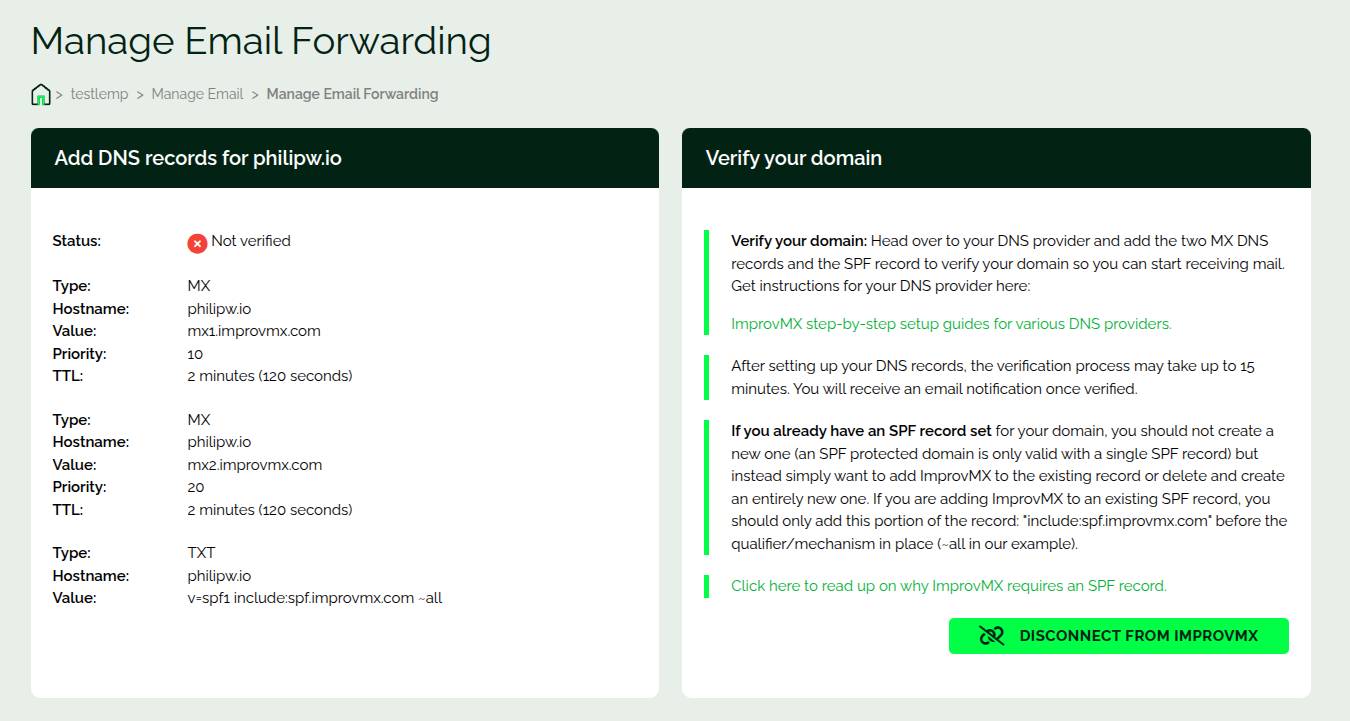
After the MX records are correctly configured, the verification process completes automatically. When validated, you can then specify the forwarding destination email address for incoming messages.
Conclusion
Email forwarding enables you to route incoming messages from your domain to external inboxes, allowing centralized email handling without hosting a mail server.


